This is an old revision of the document!
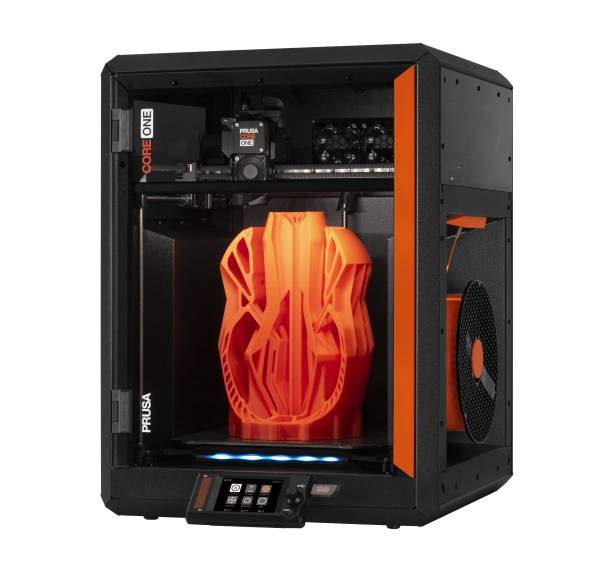
Prusa Core One
Induction Required
This equipment requires an induction prior to use. For your own safety and to avoid damage to the equipment do not attempt to use it until you have been inducted.Risks
Crush / Entanglement / Burn Hazard
This equipment is hazardous to the user or those around them, take care during use.Health and Safety
- Do not touch the nozzle or heatbed when the printer is printing or warming up. The nozzle can reach 300°C and the heatbed can reach over 100°C.
- Supervise at least the first few layers of the print and notify on the forum in the “long 3D print notifications” chat if you are going to leave the printer unattended for a significant amount of time.
- Report problems on the forum as soon as they arise. Do not attempt to disassemble the 3D printers or change the nozzles unless you have been authorised to do so. The nozzles cannot be unscrewed without disassembly, please do not try.
- Before using ABS, ASA, HIPS, or PA filament make sure the top vent is closed and the chamber fans are running.
Induction
Inductions for the 3D printers are now available on the member portal (PC near the door in the laser cutter room). Tap your card/keyfob on the reader, select “Manage machine inductions”, and take the 3D printer quiz. You will then have access on the RFID lockout box, you just need to tap your card/fob and it will switch on. If you are signed into the hackspace wifi you can also do it at https://members.bristolhackspace.org/
Print file format: bgcode or gcode - bgcode will load and start printing faster
Please use PrusaSlicer for slicing for the Hackspace 3D printers.
Change the print in settings to Prusa Core One
You may need to update Slicer to get the new print settings this can be found here: Prusa CORE One Support
Printer profile: Prusa CORE One HF0.4 nozzle
General usage and safety rules are the same as the other printers.
However with regards to filament the loading and unloading is slightly different as this has the spool holder and Nextruder - Prusa's next generation extruder with planetary gearbox and LoadCell sensor. Please read below for more information or check the manual.
**DO NOT REMOVE GEARBOX COVER**
DO NOT remove the cover of the gearbox unless you have a gearbox alignment tool that comes with the assembly kit. The gearbox is precisely aligned and calibrated. There is no need to access it and you could misalign the gearbox by removing the cover.Etiquette
Due to high usage of the 3D printers only ONE should be used by a member at any one time.
Manual
USB Format
When loading G-code from a USB stick the Prusa 3d printers are only set up to support FAT32 file systems and the partition table should also be MBR. If your USB stick works fine on a computer but isn't loaded by the printer, the most common issues are:
- It's formatted as exFAT rather than FAT32
- It's using a GUID partition table rather than MBR
For full details on why and recommended formatting tools on different operating systems please see Prusa's article on the subject.
https://help.prusa3d.com/article/sd-cards-and-usb-drives_112291
Filament
All Hackspace 3D printers use 1.75mm filament. Most filaments such as PLA, PETG, ABS, ASA, TPU etc are supported. Do not use filaments that require a nozzle temperature above 300°C.
Prusa's filament guide gives a good list of common filament materials and brands with all their printing temperatures and requirements.
Inserting filament
If you are starting with the printer, we recommend choosing PLA for the initial print. This material is easy to work with and does not require complex pre-print preparation.
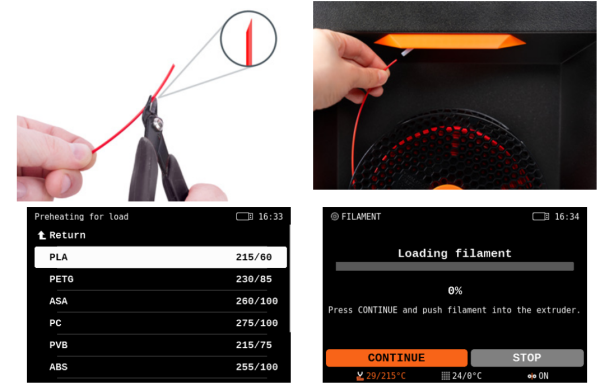
- Prepare a spool of filament (PLA is recommended), place it on the spoolholder on the side of the printer, and unhook the filament end carefully to avoid tangling.
- Cut the filament to a sharp point and push it through the PTFE tube all the way to the Nextruder. Once it reaches the filament sensor in the print head, the loading process will begin automatically.
- When the Preheat menu appears, select the filament material and wait for the nozzle to reach the desired temperature. Once it heats up fully, it will push out a bit of material from the nozzle.
The printer will ask if the color of the extruded filament is okay. Check if there is filament extruded from the nozzle, and select one of the options:
- Filament extruded, correct color: YES
- Filament not extruded or wrong color: PURGE MORE (repeatable)
- Filament not extruded and PURGE MORE doesn't help: RETRY (restart loading).
Please open the top slide vent when using PLA.
If you are printing with a soft or flexible filament, it might be easier to disable the filament switch. On the right hand side of the inside of the printer, where the filament comes in there is an orange switch. When that is set to X the filament path bypasses the switch and allows for easier loading and extruding. Please remember to turn that back on when finished, or if you notice it is off when not printing soft filaments.
Unloading filament
After use: Please completely remove your filaments from all of the lines rather than leaving a clipped amount in. Due to the lines this would be a significant loss of filament and also potential pain of the filament being used by accident by following prints. Select LCD Menu - Filament - Unload Filament
- Select LCD Menu - Filament - Unload Filament
- The printer will preheat automatically. As soon as it reaches the right temperature, the filament will be unloaded from the extruder in a few seconds.
- Once the extruder stops unloading the filament, remove it by hand from the PTFE tube. The filament needs to be wound up on the spool and secured carefully so that it does not tangle up.
- Make sure to secure the unloaded filament when you wind it up back onto the spool. If the end of the filament slips out, the spool may become tangled.

Accessories
Similarly to the Prusa XL is that it's very easy to print on different steel sheets. We have several:
- satin powder-coated – this is the default sheet for all filaments
- smooth PEI – this is the same as the previous printers. It should only be used for PLA. If you're printing PETG or FLEX, then you *need* to use the satin sheet.
- textured powder-coated – rougher texture grips better to flexible materials, but also imparts a textured finish to the bottom of parts printed on it.
They're stored under Printer A currently. If you have any doubts about which to use check here: Filament Material Guide
The Core Ones are also fitted with High Flow ObXidian abrasion resistant nozzles and the Advanced Chamber Filters, allowing for abrasive filaments and filaments with gas byproducts to be printed. These are indicated on the material guide.
Maintenance
Keep heatbed free of debris Wipe the bed with the supplied cleaning wipes soaked in isopropyl alcohol Please do not get IPA on the transparent windows NO ACETONE!!
Features
- Build volume: 250 x 220 x 270 mm (9.8’’×8.6’’x10.6’’)
- Printer dimensions: 22,5 kg, 415×444×555 mm; 16.3×17.5×21.8 in (X×Y×Z)
- Filament diameter: 1.75mm
- Supported materials: PLA, PETG, Flex, PVA, PC, PP, CPE, PVB, ABS, ASA, HIPS and PA
- Layer height: 0.05-0.30 mm
- Extruder: Nextruder, Direct Drive
- Extruder electronics: Custom breakout board for connecting fans, thermistors and other parts.
- Filament path: Aluminum heatsink, all-metal hotend
- Drive system: Nextruder Planetary Gear System, 10:1 gearbox ratio
- Cooling fan High-performance turbine, 360° cooling system
- Nozzle 0.4mm High-flow ObXidian nozzle
- Max nozzle temperature: 300 C
- Max heatbed temperature: 120 C
- Max Chamber temperature: 55 C
Troubleshooting
The first port of call if there is an issue is to run a Selftest. This is a set of various tests that serve as a diagnostic tool. This can help detect the most common problems.
The following tasks will be performed:
- Test of heatsink fan and print fan
- Test of the X, Y, and Z axis
- Gearbox alignment
- Heater tests
- LoadCell test
- Network connection (Not set up at Hackspace)
- Setting up the filament sensor
At one point, the Selftest will ask you to calibrate the filament sensor by inserting a piece of filament through the PTFE tube into the extruder. We suggest preparing an entire spool of PLA filament, so you can start printing once the Selftest finishes.